Meta Balls 1.0.1 — Liquid
A third way of joining shapes, and the first one that doesn't bake anything.
Liquid
Goo and Connect both work out the fused outline and write it as
keyframed paths — one outline per frame, which is what makes a few seconds of
animation cost hundreds of keyframes. Liquid doesn't. It inserts your
shapes as native ellipses, rectangles and paths, animated by position and
scale, and lets a blur do the merging. A whole clip comes out as tens of
keyframes instead of hundreds of outlines, and every shape stays a shape you
can select and edit after inserting.
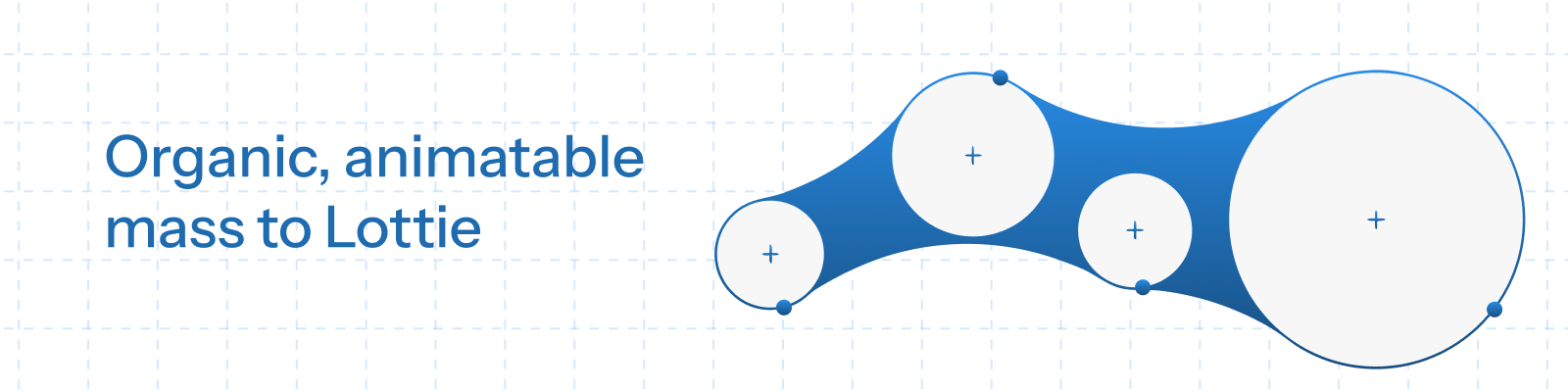
The effect is the gooey-filter trick: blur the shapes so their soft edges
overlap in the gaps between them, then crush the result back to a hard edge.
Where two blurred edges meet, their sum survives the threshold and becomes a
neck. Shapes join, stretch and let go the way liquid does, and none of it is
drawn — it is the blur, computed live by the player.
Softness sets the blur, so it controls both how far apart shapes can be and
still find each other, and how wide the neck grows once they do.
Roundness rounds off squares you add yourself.
Pick shapes off your canvas
Select artwork in your Creator scene and it appears in the panel, ready to
fuse. Ellipses, rectangles, paths, stars and polygons all come across, with
their position and size animation, their rotation, and the fills and strokes
they were drawn with — so the preview looks like your artwork rather than a
placeholder. A line under the mode buttons tells you what came in, what was
skipped, and anything the import could only approximate.
Liquid keeps that appearance all the way through: the colours you see melting
into each other in the preview are the colours that get inserted.
Also in this release
Goo handles any shape. Imported paths and stars now fuse by their real
contour rather than their bounding box.
Connect says when it can't help. Its membrane construction only works on
plain ellipses and squares, so it now disables itself, and says why, when the
selection contains anything else.
Scrub the real timeline. Dragging the panel's timeline moves Creator's
playhead, so the artwork and the preview show the same moment.
A steadier panel. Switching modes and selecting layers no longer resize
the plugin window.